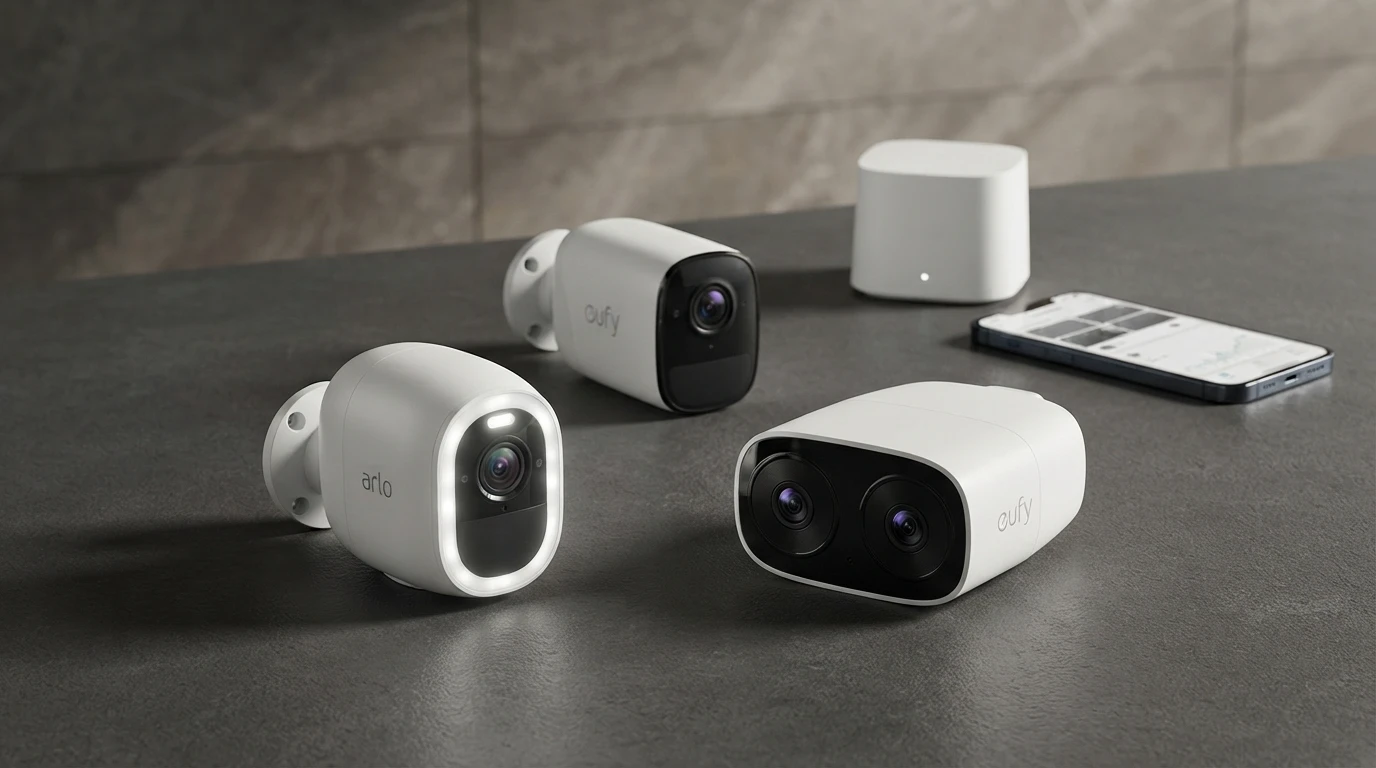
Home Security Camera Buying Guide
What to know before you buy: resolution, storage, subscriptions, and smart home compatibility
Everything you need to know to choose the right home security camera — wired vs wireless, cloud vs local storage, and smart home compatibility.
Buying a home security camera is straightforward in theory. In practice, the combination of subscriptions, storage types, resolution options, and smart home compatibility makes it confusing fast. This guide cuts through the noise.
Step 1: Decide Where You Need Coverage
Map your priorities before browsing cameras:
- Front door: A video doorbell is often better here than a standalone camera — it captures faces directly and lets you speak to visitors.
- Driveway and garage: Wide-angle coverage matters. A 130-160-degree FOV camera or a dual-lens camera with zoom covers more ground.
- Backyard and side gates: Wire-free cameras are easier to install in areas without power outlets.
- Indoor monitoring: Smaller pan/tilt cameras work well for interior coverage — they can cover a full room from one position.
Step 2: Wired or Wire-Free?
Wired cameras connect to power via cable (and optionally an ethernet cable for reliability). They are always on, never run out of power, and typically offer continuous recording. The trade-off is installation effort — you need to route cables.
Wire-free cameras run on rechargeable or solar-powered batteries. They install anywhere in minutes. The trade-off is battery life (typically 3-6 months per charge) and the fact that they usually only record on motion, not continuously.
Step 3: Understand Resolution
Higher resolution means more detail, particularly for identifying faces and license plates. As a practical guide: 1080p is the minimum for useful face recognition at normal distances. 2K or 4K is better for wide areas or cameras mounted high.
More resolution means larger files and faster storage consumption. If you store footage locally, account for this when choosing card size.
Step 4: Cloud Storage vs Local Storage
This is the most important decision beyond the camera itself.
Cloud storage keeps footage off-site (safe from theft or damage on-premise), accessible from anywhere, and usually backed by AI-powered detection. It costs $2-$15/month per camera, or $10-$30/month for whole-home plans.
Local storage uses a microSD card inside the camera, a USB drive on a hub, or a NAS device. There is no monthly fee. The trade-off: if the camera is stolen, so is the footage (unless it has already synced to cloud backup).
Best practice: cameras that support both — local storage for the primary record and optional cloud backup — give you the most flexibility.
Step 5: Smart Home Compatibility
Check compatibility before you buy, not after.
- Alexa: Most cameras support Alexa for live view commands ("Alexa, show me the front door"). AI detection integration varies.
- Google Home: Similar to Alexa — most cameras support live view. Nest cameras integrate most deeply.
- Apple Home (HomeKit): Fewer cameras support HomeKit. Those that do benefit from HomeKit Secure Video — encrypted storage in iCloud with strong privacy protections.
- Matter: Not yet widely supported for cameras, but growing.
Step 6: Night Vision
Standard infrared (IR) night vision shows black-and-white footage in the dark. Color night vision uses a built-in spotlight or ambient light to produce color footage. Color is more useful for identifying people and vehicles but requires a spotlight that may be visible to neighbors.
Questions to Ask Before Buying
What is the subscription cost, and what features require it? Some cameras limit even basic functionality (viewing footage older than a few hours) without a subscription. Read the subscription page, not just the feature list.
Where does footage go if the camera is stolen? If footage only exists locally and the camera is taken, so is your evidence. Cameras with automatic cloud sync or secure remote backup protect against this.
Does it work if my internet goes down? Local-storage cameras continue recording. Cameras that depend on cloud connectivity stop or reduce functionality without internet.
FAQ
How many cameras do I need?
For a typical house: one at the front door (or a video doorbell), one covering the driveway/garage, and one or two at rear entry points. Apartments usually need one camera at the front door and one indoor.
What resolution is enough to identify a face?
1080p at 10-15 feet, or 2K/4K at larger distances. Camera placement matters as much as resolution — a 4K camera pointed at a wide angle from a second-floor mount may not capture faces as well as a 1080p camera at eye level.
Do I need professional installation?
Wire-free cameras require no installation expertise — mount and connect to Wi-Fi. Wired cameras may require running cables, which some people hire an electrician or handyman for. Indoor cameras need no installation at all — plug in and connect.