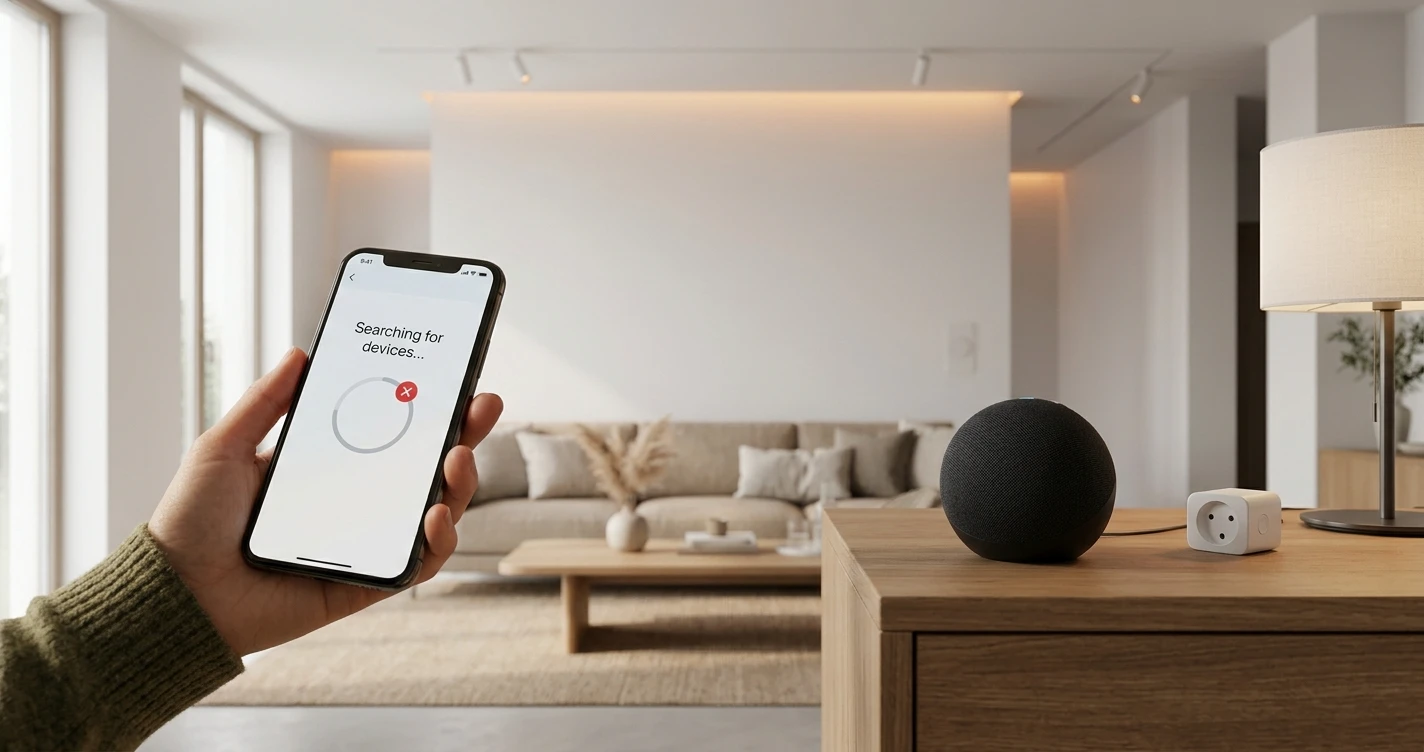
Alexa Can't Find My Device: How to Fix It
Fix Alexa not finding or discovering your smart home device. Step-by-step troubleshooting for Alexa device discovery problems.
When Alexa says "I couldn't find a device" or simply doesn't discover a new device you've added, the problem is almost always one of a few common causes. This guide walks through them in order of likelihood.
Before You Start
Confirm these basics first:
- The device is powered on and has been set up in its own app (e.g., the Govee, TP-Link Kasa, Philips Hue, or Wyze app).
- Your Amazon Echo is online — check the Alexa app to confirm.
- Your phone is connected to the same Wi-Fi network as the Echo and the device.
Step 1: Enable the Correct Alexa Skill
Most third-party smart home devices require an Alexa Skill to be enabled before Alexa can control them. Without the skill, discovery will always fail.
In the Alexa app:
- Tap the More icon → Skills & Games.
- Search for the brand name (e.g., "Kasa Smart", "Govee Home", "Philips Hue").
- Tap Enable to Use.
- Follow the on-screen steps to link your account.
After enabling the skill, run device discovery again (More → Add Device → Discover Devices, or say "Alexa, discover my devices").
Step 2: Check the Device Is Connected in Its Own App
Alexa can only control devices that are already working in their native app. If the device shows as offline in the Govee, Kasa, or similar app, fix that connection first before attempting Alexa discovery.
Step 3: Relink the Skill Account
If the skill was previously linked but discovery still fails, try unlinking and relinking your account:
- Alexa app → More → Skills & Games → Your Skills.
- Find the relevant skill and tap Disable Skill.
- Re-enable it and log in again when prompted.
- Run discovery again.
Step 4: Run Discovery Again
You can trigger device discovery in several ways:
- Say: "Alexa, discover my devices."
- Alexa app → Devices → the "+" icon → Add Device → Discover Devices.
Discovery can take up to 45 seconds. Wait for it to complete before assuming it failed.
Step 5: Restart the Device and the Echo
Power cycle both the smart device and your Amazon Echo. Unplug both, wait 30 seconds, plug them back in, and wait for them to fully reconnect before running discovery again.
Step 6: Check Compatibility
Not all smart home devices work with Alexa. Check the product packaging or the manufacturer's website for the "Works with Alexa" badge or a specific mention of Alexa compatibility. If the device doesn't list Alexa support, it may not be compatible.
Also check whether the device requires a hub (such as a Philips Hue Bridge or SmartThings Hub). If a hub is required, the hub needs to be set up and connected first.
Step 7: Check the Alexa App for Device Limits
Alexa accounts have a maximum number of devices they can manage. If you have a very large smart home setup, you may have reached the limit. Check the Alexa app to see if any old or unused devices can be removed.
Step 8: Matter Devices
If you're trying to add a Matter-enabled device to Alexa, the process is different from standard Wi-Fi devices. You need to use the Alexa app's Add Device flow and scan the Matter QR code on the device. Make sure your Echo has Thread Border Router capability if the device uses Thread rather than Wi-Fi. Echo devices that support Matter include the Echo (4th gen and later), Echo Dot (5th gen), and Echo Show 10 and 15.
Frequently Asked Questions
- Alexa says "Device is unresponsive." Is this the same problem?
- No — "Device is unresponsive" means Alexa found the device but can't reach it right now. This is usually a Wi-Fi or power issue with the device itself rather than a discovery problem.
- Do I need to discover devices every time I add a new one?
- Yes. Alexa doesn't automatically detect new devices. You need to run discovery (or say "Alexa, discover my devices") each time you add a new device to your network.
- My device works in its app but not with Alexa — why?
- The most common reason is a missing or unlinked Alexa Skill. Follow Step 1 above. If the skill is already enabled, try relinking the account (Step 3).
Where to Buy
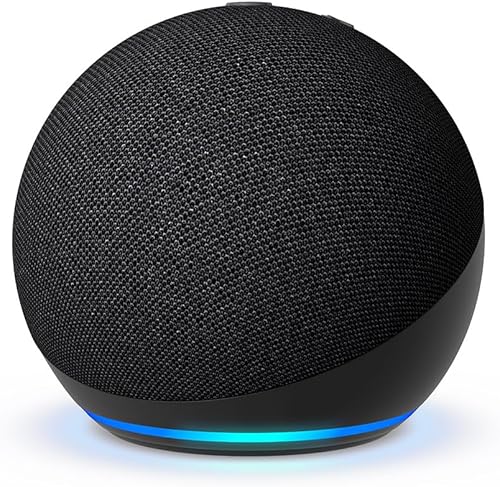


Affiliate links — we may earn a commission at no extra cost to you.
Related Articles
More in this topic
- TROUBLESHOOTING Smart Lock Not Responding: How to Fix It
- TROUBLESHOOTING Matter Device Won't Pair: How to Fix It
- TROUBLESHOOTING Smart Camera Keeps Going Offline: How to Fix It
- TROUBLESHOOTING Smart Bulb Not Connecting to Wi-Fi: How to Fix It