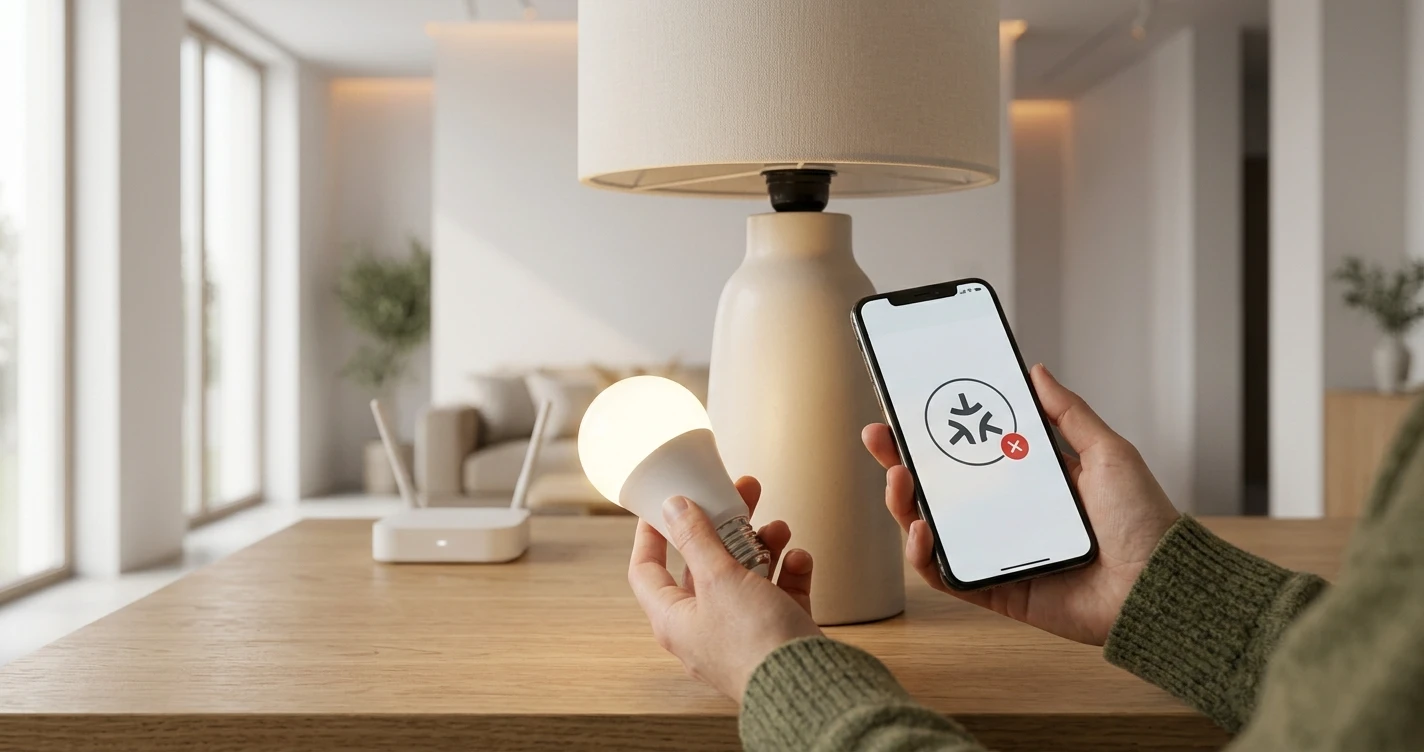
Smart Bulb Not Connecting to Wi-Fi: How to Fix It
Step-by-step fixes for a smart bulb that won't connect to your Wi-Fi network. Covers 2.4 GHz issues, pairing mode, app problems and router settings.
A smart bulb that refuses to connect to Wi-Fi is one of the most common smart home frustrations. The good news: most cases have a straightforward fix. Work through the steps below in order and you'll likely resolve the issue in a few minutes.
Before You Start: Quick Checks
Run through these before diving into more detailed steps:
- Power cycle the bulb. Turn it off at the switch, wait 10 seconds, turn it back on.
- Check your Wi-Fi password. Make sure you're entering the exact password, including capital letters and symbols.
- Confirm your phone is connected to the same Wi-Fi network you want the bulb on — not a 5 GHz band or a guest network.
- Check the app is up to date. Outdated apps can cause pairing failures.
Step 1: Use Your 2.4 GHz Wi-Fi Band
This is the cause of most smart bulb connection failures. The vast majority of smart bulbs — regardless of brand — only support 2.4 GHz Wi-Fi. They do not work on 5 GHz networks.
If your router broadcasts a single network name (SSID) that combines both bands, you may need to separate them. Most router admin panels or apps let you assign different names to each band. Connect your phone to the 2.4 GHz network before attempting to pair the bulb.
If you're unsure which band your phone is currently on, go to your phone's Wi-Fi settings and look for network details — many Android and iOS versions show the band.
Step 2: Put the Bulb into Pairing Mode Correctly
Smart bulbs need to be in pairing mode before the app can find them. The standard method is to toggle power on and off several times in quick succession:
- Most bulbs: turn on and off 3–5 times, each cycle about 1 second apart.
- The bulb should flash or pulse to indicate it's in pairing mode.
Check your bulb's manual or the manufacturer's support page for the exact sequence — it varies between brands. If the bulb doesn't flash, repeat the sequence.
Step 3: Move the Bulb Closer to the Router
During initial pairing, signal strength matters more than during normal use. If the bulb is in a room far from your router, temporarily move it to a lamp near the router to complete setup. Once paired, you can move it back.
Step 4: Restart the App and Try Again
Close the smart home app completely (don't just minimise it), wait a few seconds, and reopen it. Then start the add-device process from the beginning. This clears any cached state that might be preventing discovery.
Step 5: Check Router Settings
Some router configurations block smart home devices. Things to check:
- AP Isolation / Client Isolation: If enabled, devices on the same network can't communicate with each other. Disable it for smart home use.
- Band steering: Some routers automatically push devices to 5 GHz. Disable band steering or create a dedicated 2.4 GHz SSID.
- MAC address filtering: If your router only allows specific devices, you'll need to add the bulb's MAC address (usually printed on the box).
Step 6: Factory Reset the Bulb
If the bulb was previously paired to another app or account, it may need a factory reset before it can be claimed again. The reset method is usually a longer power-cycle sequence — for example, 10 on/off cycles or holding the power on for a specific duration. Check the manufacturer's documentation for the exact reset procedure for your bulb model.
Step 7: Check for App Permissions
Smart home apps require specific permissions to discover devices on your local network:
- iOS: Go to Settings → [App Name] and ensure Local Network access is enabled.
- Android: Go to Settings → Apps → [App Name] → Permissions and ensure location (required for Wi-Fi scanning) is allowed.
If Nothing Works: Contact Support
If you've completed all the steps above and the bulb still won't connect, the issue may be a hardware fault or a firmware problem. Contact the manufacturer's support with the bulb's model number and a description of what you've tried. Most brands will replace a defective unit.
Frequently Asked Questions
- Why does my smart bulb need 2.4 GHz and not 5 GHz?
- 2.4 GHz has better range and wall penetration, which is why most low-power smart home devices use it. 5 GHz is faster but has shorter range. Most smart bulbs use chips that only support 2.4 GHz to keep costs low.
- Can I use a smart bulb with a mesh Wi-Fi system?
- Yes, but some mesh systems use a single SSID for both bands. Check your mesh system's app — most allow you to create a separate 2.4 GHz network or disable band steering for specific devices.
- My bulb connected before but now it's offline. What do I do?
- This is a different problem. If the bulb was working and is now offline, see our guide on smart cameras and devices going offline — the causes and fixes are similar.
Where to Buy


Affiliate links — we may earn a commission at no extra cost to you.
Related Articles
More in this topic
- TROUBLESHOOTING Smart Lock Not Responding: How to Fix It
- TROUBLESHOOTING Matter Device Won't Pair: How to Fix It
- TROUBLESHOOTING Smart Camera Keeps Going Offline: How to Fix It
- TROUBLESHOOTING Alexa Can't Find My Device: How to Fix It