Matter Device Won't Pair: How to Fix It
Fix a Matter smart home device that won't pair or connect. Covers QR codes, Thread, hub requirements, app setup and factory reset steps.
Matter is designed to make smart home device setup simpler and more reliable — but when pairing fails, the process can feel more confusing than older systems. This guide explains the most common causes of Matter pairing failures and how to resolve them.
Understanding How Matter Pairing Works
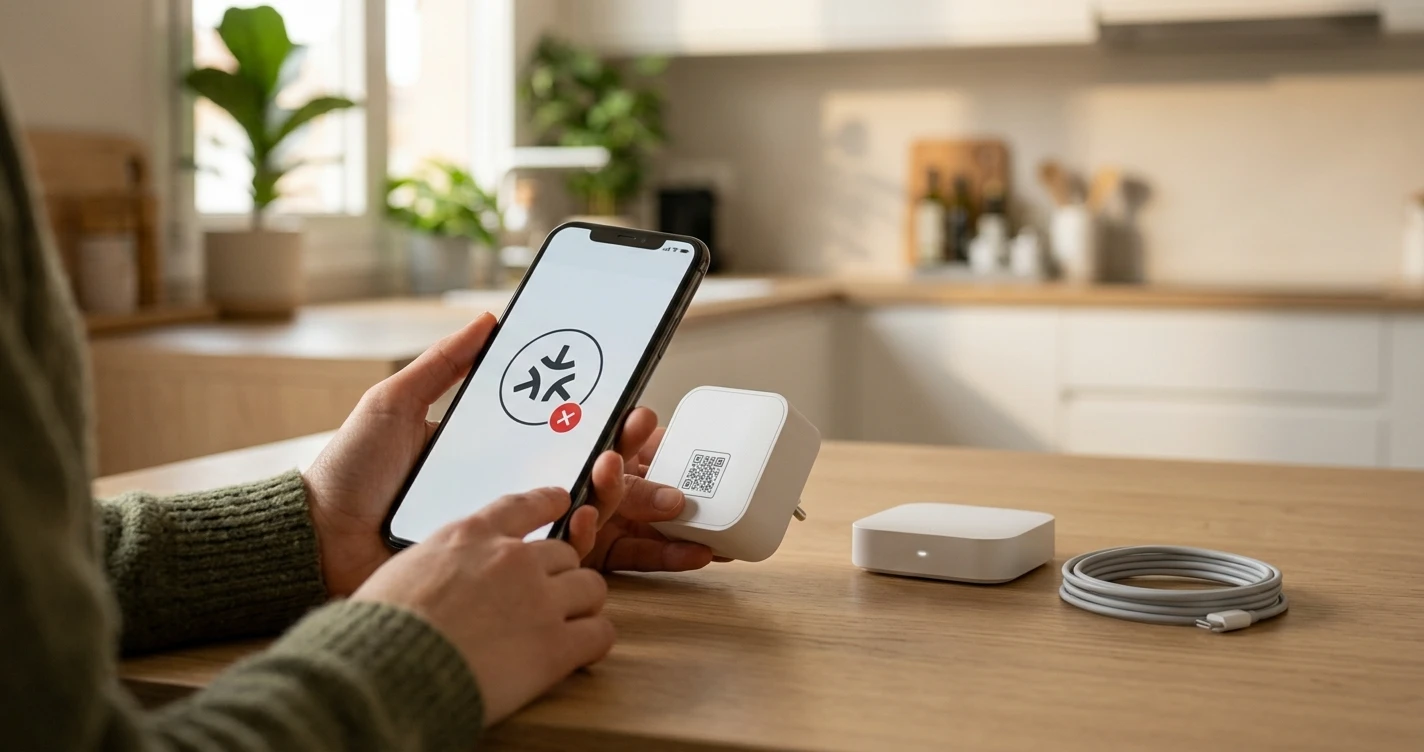
Matter devices pair via a QR code or numeric setup code. You scan the code using your smart home app (Alexa, Google Home, Apple Home, or SmartThings), and the app handles the rest. Matter devices can connect via Wi-Fi or Thread, depending on the device and your hardware.
Step 1: Check Your Hub or Controller Supports Matter
Not all smart home hubs and controllers support Matter. Confirm that your hub or smart speaker supports Matter before trying to pair a Matter device:
- Amazon Alexa: Echo (4th gen+), Echo Dot (5th gen), Echo Show 10, Echo Show 15
- Google Home: Nest Hub (2nd gen), Nest Hub Max, Nest Mini (2nd gen), Nest Wi-Fi Pro
- Apple Home: HomePod (2nd gen), HomePod mini, Apple TV 4K (3rd gen)
- Samsung SmartThings: SmartThings Station, Aeotec Smart Home Hub
If your hub isn't on this list, check the manufacturer's current documentation — Matter support is added via software updates and the list changes.
Step 2: Use the Correct QR Code
Matter devices include a QR code for pairing. This code is typically found:
- On a sticker on the device itself.
- On the product packaging.
- In the device's documentation.
Some devices also display a numeric pairing code as an alternative. Use whichever the app requests. The QR code is specific to that device — it can't be shared between units.
Step 3: Put the Device in Pairing Mode
Most Matter devices need to be in pairing mode before the QR code scan will work. This usually involves:
- A long press on a physical button on the device.
- A factory reset if the device was previously paired.
Check the device manual for the exact pairing mode activation method. The device typically indicates pairing mode with an LED pattern (flashing amber or white is common).
Step 4: Check Thread Requirements (for Thread Devices)
Some Matter devices use Thread rather than Wi-Fi for their connection. Thread requires a Thread Border Router — a device that bridges the Thread network to your Wi-Fi network. Compatible Thread Border Routers include:
- HomePod mini, HomePod (2nd gen)
- Apple TV 4K (3rd gen)
- Echo (4th gen)
- Nest Hub (2nd gen), Nest Hub Max
- Nest Wi-Fi Pro
If you don't have a Thread Border Router, a Thread-based Matter device won't connect. Check the device packaging to confirm whether it uses Wi-Fi or Thread.
Step 5: Use the App That Controls the Pairing
Matter devices can be added to multiple ecosystems, but the first pairing (commissioning) must be done through a specific app. Some devices require you to use their native app first, then share to other ecosystems. Others can be added directly via any Matter-compatible controller app.
Check the device documentation to confirm whether you should use the native brand app or add it directly through Alexa, Google Home, or Apple Home.
Step 6: Check Bluetooth is Enabled
Matter uses Bluetooth for the initial pairing handshake, even for devices that will ultimately connect via Wi-Fi or Thread. Make sure Bluetooth is enabled on your phone during the pairing process.
Step 7: Factory Reset the Device
If the device was previously paired — even in the factory or during QA testing — it may retain old credentials that prevent new pairing. Factory reset the device and try pairing again. The reset method varies by device — check the manual for the specific button sequence.
Step 8: Update Your Hub and App
Matter support in hubs and apps has been evolving since launch. Older versions may have pairing bugs that were fixed in later updates. Ensure your smart home hub firmware and the corresponding app are fully up to date before attempting to pair a Matter device.
Frequently Asked Questions
- Can I add a Matter device to more than one ecosystem?
- Yes — this is one of Matter's key features, called multi-admin. After pairing a device to one ecosystem, you can add it to others by generating a new pairing code from the original app.
- My device has a Matter logo but won't pair with Apple Home. Why?
- Having the Matter logo means the device passed certification, but there can still be compatibility nuances. Check if the device requires a specific Apple Home setup version, and ensure your iPhone and Apple Home hub are fully updated.
- Does Matter replace Zigbee and Z-Wave?
- Not yet — Matter runs on Wi-Fi and Thread, not Zigbee or Z-Wave. Zigbee and Z-Wave hubs that want to expose devices to Matter can use a bridge (some SmartThings and Philips Hue hubs do this), but Zigbee and Z-Wave devices aren't natively Matter devices.
Where to Buy


Affiliate links — we may earn a commission at no extra cost to you.
Related Articles
More in this topic
- TROUBLESHOOTING Smart Lock Not Responding: How to Fix It
- TROUBLESHOOTING Smart Camera Keeps Going Offline: How to Fix It
- TROUBLESHOOTING Alexa Can't Find My Device: How to Fix It
- TROUBLESHOOTING Smart Bulb Not Connecting to Wi-Fi: How to Fix It