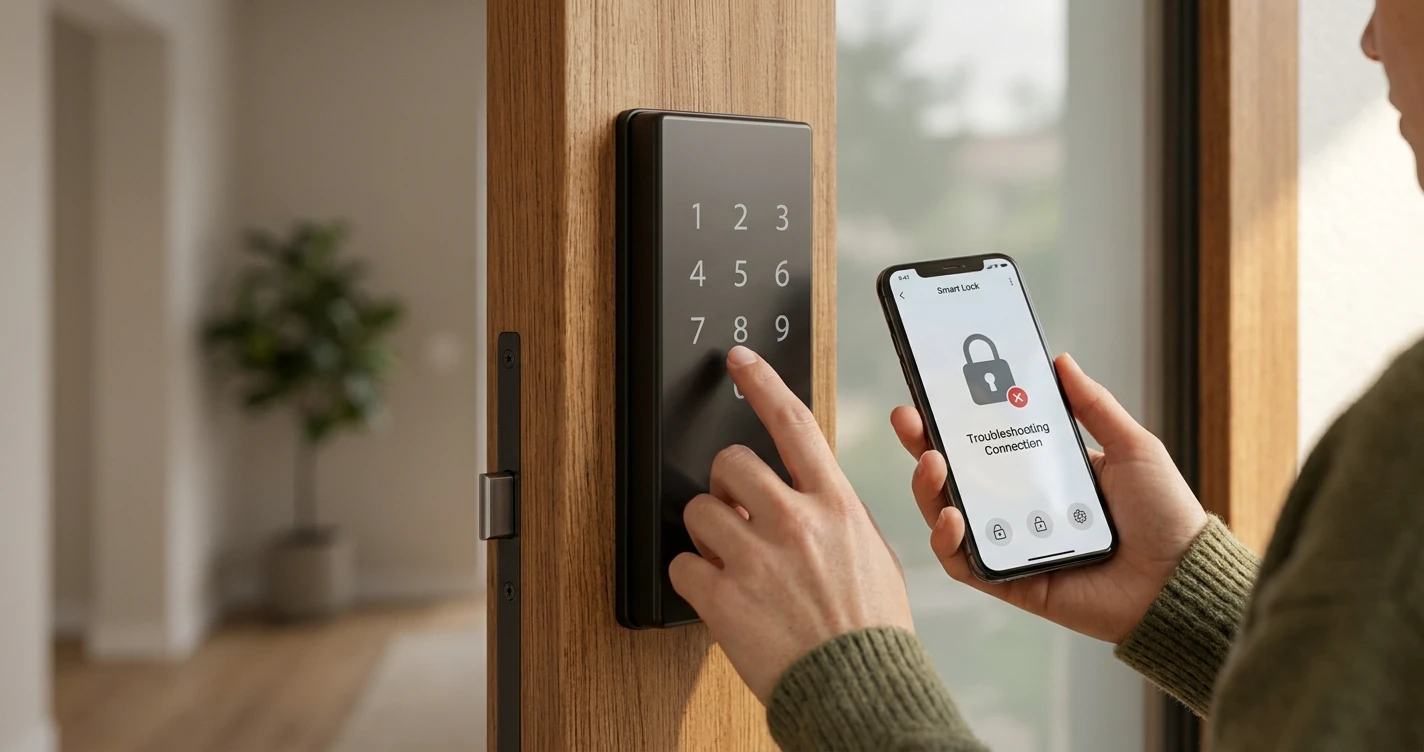
Smart Lock Not Responding: How to Fix It
Fix a smart lock that won't respond to the app, voice commands or keypad. Step-by-step troubleshooting for common smart lock connectivity problems.
A smart lock that doesn't respond is more than an inconvenience — it can affect access to your home. This guide covers the most common causes of smart lock unresponsiveness and how to resolve them, starting with the most likely fixes.
Step 1: Check the Batteries
This is the most frequent cause of smart lock problems. Smart locks are battery-powered and can become unresponsive or erratic as batteries drain — often without a clear low-battery warning.
- Replace with fresh batteries using the brand recommended in the lock manual (usually AA or AA lithium).
- Use lithium batteries rather than alkaline if you live in a climate with temperature extremes — cold weather drains alkaline batteries much faster.
- After replacing batteries, wait 30 seconds for the lock to reinitialise before testing.
Step 2: Check Your Connection Method
Smart locks connect to your phone and smart home system in different ways, and the fix depends on which method your lock uses:
- Bluetooth only: The lock can only be controlled when your phone is within Bluetooth range (typically 30 feet). If you're trying to control it remotely, you need a hub or bridge.
- Z-Wave or Zigbee: The lock connects through a smart home hub (SmartThings, Hubitat, etc.). If the hub is offline, the lock won't respond to app commands.
- Wi-Fi: The lock connects directly to your router. Check that your Wi-Fi network is up and that the lock is within range.
- Matter over Thread: Requires a Thread Border Router to be online and functioning.
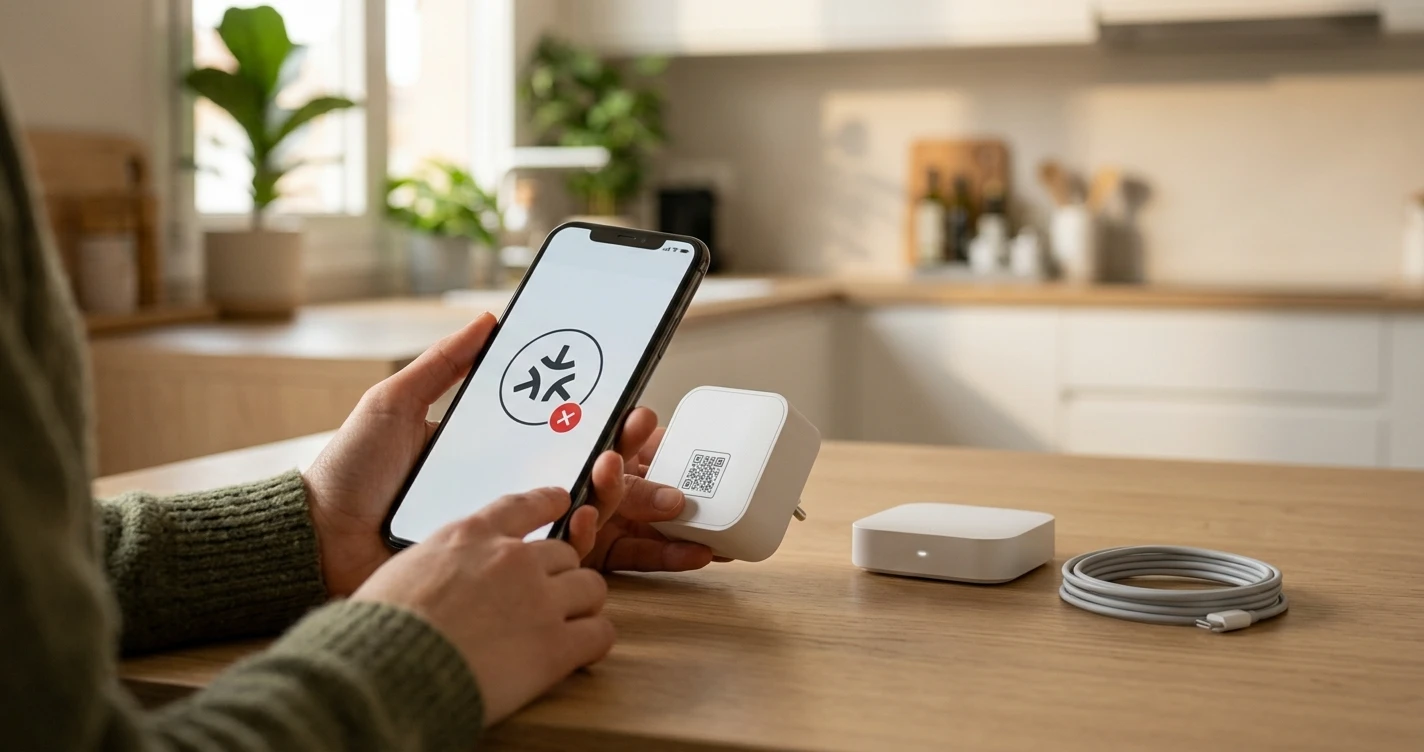
Step 3: Restart the Hub or Bridge
If your lock uses a hub, bridge, or smart home controller:
- Unplug the hub from power.
- Wait 30 seconds.
- Plug it back in and wait for it to fully restart (usually 1–2 minutes).
- Test the lock again.
Many smart lock connectivity issues resolve immediately after a hub restart.
Step 4: Check the Lock's Physical Alignment
Smart locks have internal motors. If the lock is physically misaligned with the door frame — even slightly — the motor may struggle or fail to engage, causing the app to show "unresponsive" because a command couldn't be completed.
- Try the physical keypad or manual turn (if your lock has one). Does it operate smoothly?
- Check that the door closes fully and the deadbolt extends and retracts freely without binding.
- If the door has settled or warped, you may need to adjust the strike plate.
Step 5: Check for Interference
Z-Wave and Zigbee locks operate on radio frequencies that can be affected by interference from other electronics. Common sources of interference include:
- Microwave ovens (Zigbee, which uses 2.4 GHz)
- Cordless phones
- Baby monitors
- Other wireless devices close to the lock or hub
If you recently added other devices to your home and the lock started having problems afterward, interference may be a factor.
Step 6: Check the App and Account
- Force-close the lock's app and reopen it.
- Check that you're logged into the correct account.
- If using a voice assistant (Alexa, Google Home), confirm the lock is still listed in the Alexa or Google Home app under your devices.
- Check whether the lock's cloud service has any reported outages.
Step 7: Re-pair or Reinstall the Lock in Your Hub
If the lock has lost its connection to your hub, you may need to exclude and re-include it:
- In your hub's app, use the "Exclude" or "Remove Device" function for Z-Wave devices, or "Delete" for Zigbee devices.
- Put the lock in exclusion mode (check the manual — usually a specific button press).
- Once excluded, add it again through the hub's "Add Device" process.
This process varies by hub and lock model — refer to both manuals for the exact steps.
Step 8: Check for Firmware Updates
Some smart lock connectivity issues are caused by firmware bugs. Open the lock's native app and check for firmware updates. If an update is available, install it and test again.
Emergency Access
If you're locked out and the lock isn't responding:
- Most smart locks retain a physical key cylinder as backup — use your physical key.
- Some locks have a backup power port (usually Micro-USB or 9V battery terminals on the outside) if internal batteries are dead.
- Check the lock's documentation for emergency access procedures specific to your model.
Frequently Asked Questions
- My smart lock shows as "online" in the app but won't lock or unlock. Why?
- This usually indicates a mechanical problem — the motor is working but the deadbolt is binding. Check the physical alignment of the lock and door frame.
- Can I use a smart lock without internet?
- It depends on the lock. Bluetooth-only locks work locally without internet. Z-Wave and Zigbee locks work through a local hub — they can function without internet but require the hub to be powered on. Some Wi-Fi locks require cloud connectivity and won't work without internet.
- My smart lock worked fine and then just stopped responding. Nothing changed.
- Batteries are the most likely cause even if the app didn't show a low-battery warning. Replace them first. If that doesn't fix it, check whether a hub firmware update changed something, or whether your router assigned the lock a new IP address.
Where to Buy








Affiliate links — we may earn a commission at no extra cost to you.
Related Articles
More in this topic
- TROUBLESHOOTING Matter Device Won't Pair: How to Fix It
- TROUBLESHOOTING Smart Camera Keeps Going Offline: How to Fix It
- TROUBLESHOOTING Alexa Can't Find My Device: How to Fix It
- TROUBLESHOOTING Smart Bulb Not Connecting to Wi-Fi: How to Fix It