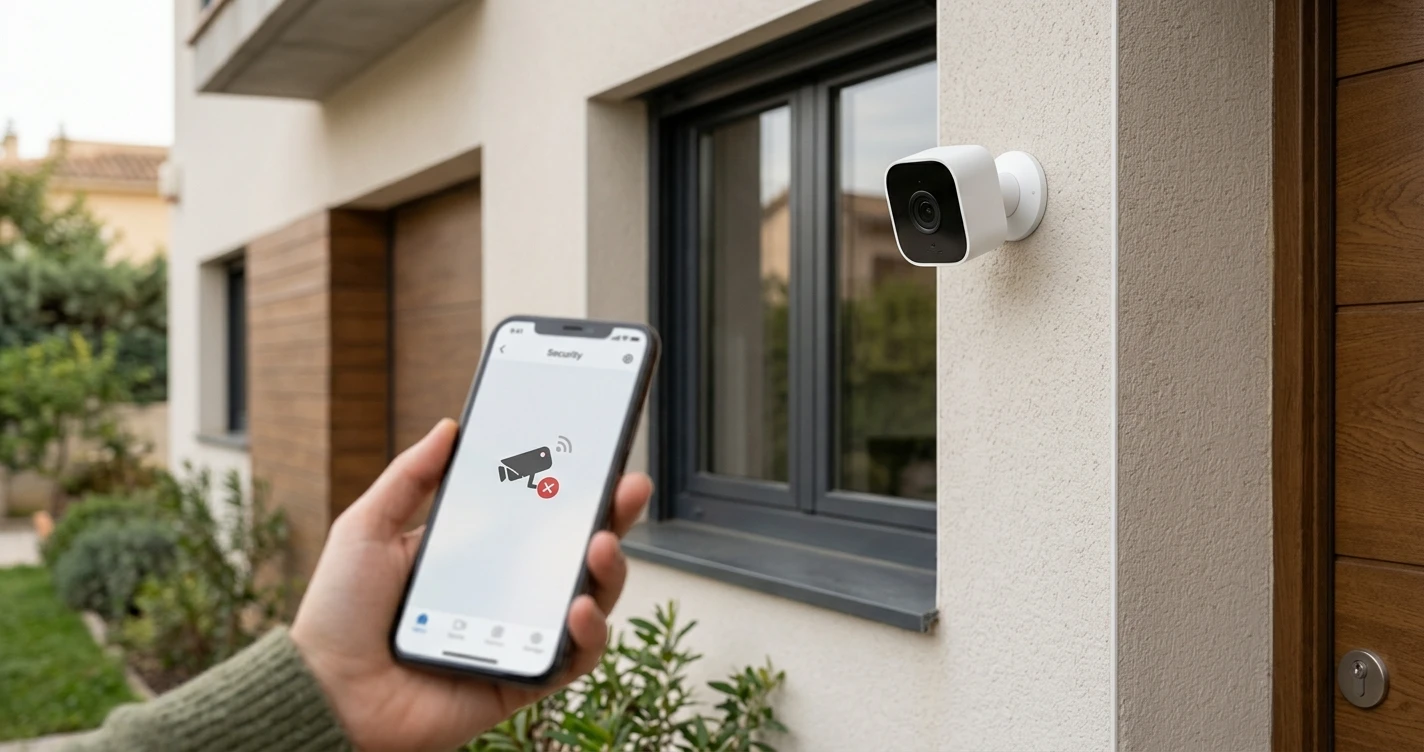
Smart Camera Keeps Going Offline: How to Fix It
Fix a smart security camera that keeps disconnecting or going offline. Covers Wi-Fi signal, power, firmware and router settings.
A security camera that repeatedly goes offline defeats the purpose of having one. This guide covers the most common reasons smart cameras disconnect and how to fix each one.
Step 1: Check Wi-Fi Signal Strength at the Camera Location
Weak Wi-Fi signal is the leading cause of cameras going offline intermittently. The camera might connect fine initially but drop when signal fluctuates.
How to check:
- Take your phone to the exact spot where the camera is mounted and check the Wi-Fi signal bars.
- Most camera apps also show signal strength in the device settings — check this in the app.
If signal is weak:
- Move the camera closer to the router.
- Add a Wi-Fi extender or mesh node near the camera.
- If the camera is outdoors, check whether walls or other obstacles are blocking the signal path.
Step 2: Check the Power Source
Cameras that rely on USB power adapters can go offline if the adapter delivers inconsistent power. This is especially common with third-party or low-quality chargers.
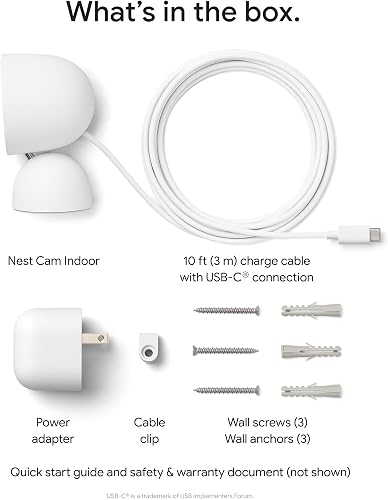
- Use only the power adapter supplied with the camera.
- If the camera is connected via a USB hub, try connecting it directly to a wall outlet.
- For battery-powered cameras, check the battery level — low battery can cause intermittent disconnections before the camera fully dies.
Step 3: Update the Camera Firmware
Firmware bugs can cause stability issues including unexpected disconnections. Check the camera's app for available firmware updates and install any that are pending. After updating, monitor whether the disconnections continue.
Step 4: Check for IP Address Conflicts
If multiple devices on your network get assigned the same IP address, they can knock each other offline. To prevent this:
- Log into your router's admin panel.
- Assign the camera a static (reserved) IP address based on its MAC address.
- The MAC address is usually printed on the camera's label or shown in the camera app settings.
Step 5: Check Router Settings
- Band steering: Cameras are 2.4 GHz devices. If your router is pushing them to 5 GHz, they may disconnect. Create a dedicated 2.4 GHz SSID or disable band steering.
- DHCP lease time: A very short DHCP lease can cause the camera to briefly go offline when renewing its IP address. Increasing the lease time (e.g., to 24 hours) can help.
- Firewall rules: Some routers block outbound connections on ports used by camera cloud services. Check if any firewall rules might be blocking the camera.
Step 6: Reduce Network Congestion
Smart cameras stream video continuously, which uses significant bandwidth. If you have many devices competing for bandwidth on your network, cameras may disconnect under load. Consider:
- Upgrading to a faster internet plan.
- Using Quality of Service (QoS) settings on your router to prioritise the camera.
- Reducing the camera's video resolution or quality setting in the app to reduce bandwidth demand.
Step 7: Factory Reset and Re-pair
If the camera has been running for a long time without a reset, internal state corruption can cause instability. Factory reset the camera (check the manual for the reset button location) and set it up again from scratch. This often resolves persistent connection issues.
Step 8: Check the Manufacturer's Server Status
Some cameras depend on cloud servers to function. If the manufacturer's servers are down, cameras can appear offline even though the hardware is fine. Check the manufacturer's status page or social media for any service outage announcements.
Frequently Asked Questions
- My camera only goes offline at night. What could cause this?
- This can happen if the camera switches to night vision mode and draws more power, or if your router automatically reboots at night (some ISP-provided routers do this). Check your router settings for any scheduled restarts.
- Will a local storage camera (SD card) still work if it goes offline?
- Yes — cameras with local SD card storage will continue recording locally even without internet access. You won't receive live notifications, but the footage is saved to the card.
- My camera is outdoors. Are there special considerations?
- Outdoor cameras face additional challenges: temperature extremes can affect Wi-Fi chips, and moisture can cause connectivity problems. Make sure the camera is rated for outdoor use (IP65 or higher) and that the cable entry points are properly sealed.
Where to Buy
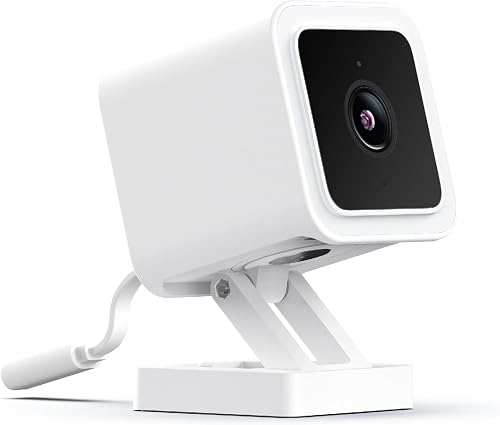






Affiliate links — we may earn a commission at no extra cost to you.
Related Articles
More in this topic
- TROUBLESHOOTING Smart Lock Not Responding: How to Fix It
- TROUBLESHOOTING Matter Device Won't Pair: How to Fix It
- TROUBLESHOOTING Alexa Can't Find My Device: How to Fix It
- TROUBLESHOOTING Smart Bulb Not Connecting to Wi-Fi: How to Fix It